How to Change Your Facebook Page Name in 2026 (Phone + Computer)
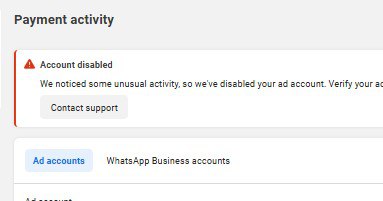
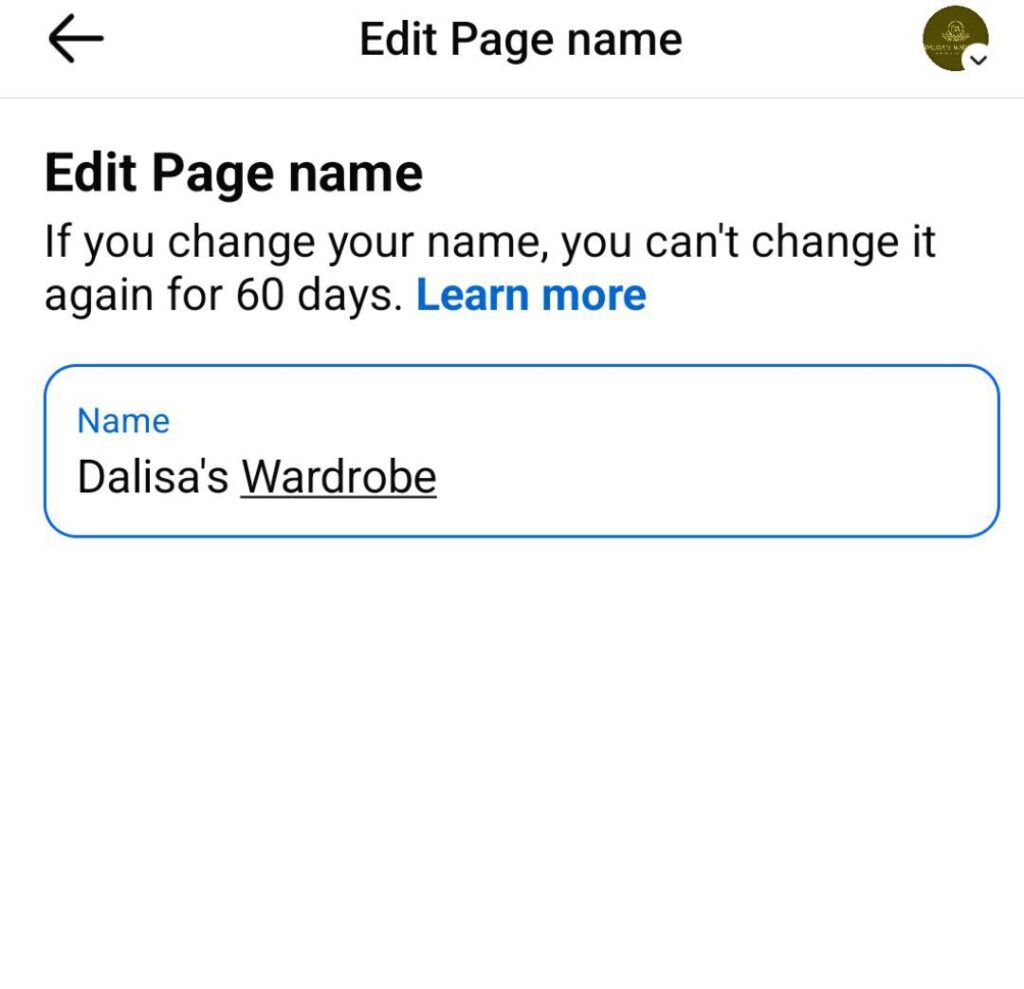
Changing your Facebook Page name in 2026 is possible from your phone or computer if you have the necessary Page access. The process involves opening your Page settings, finding the name section, entering your new name and submitting the request. Facebook may review the change before approving it. If you cannot change the name, the problem may be your Page access, a recent name change, restrictions on the Page or the new name itself. This guide explains the current process and what to do when Facebook won’t let you change your Page name. How Do You Change Your Facebook Page Name? The quickest way to change your Facebook Page name is to open your Page, access its settings, find the Page information or name option, enter the new name and submit the request. The exact menu labels can vary depending on whether you’re using the Facebook mobile app, mobile browser or desktop version. Before changing your name, make sure the new name accurately represents your business, organisation, brand or purpose. Before you change your Page name Check these things first: Important: Changing your Page name does not mean you are changing your Facebook username or Page URL. Those are separate settings. How to Change Your Facebook Page Name on a Phone If you normally manage your business Page from your smartphone, you can use the Facebook app. The interface may look slightly different depending on your device and Facebook’s latest app update, but the general process follows the Page settings. Step 1: Open Facebook Open the Facebook app on your Android phone or iPhone and log into the account that manages the Page. Step 2: Open your Page Tap your profile picture or the menu and switch to the Facebook Page you want to edit. Make sure you are acting as the correct Page before changing any settings. Step 3: Open Page settings Go to the Page’s settings. Depending on the version of Facebook you are using, you may see options related to Settings & privacy, Settings, Page setup, or Page information. Step 4: Find the Page name Look for the section containing your Page’s basic information. Select Name or the equivalent option for editing the Page name. Step 5: Enter your new name Delete the existing name and type the name you want to use. Take your time at this stage. Check spelling, capitalisation and spacing before submitting. Step 6: Submit the change Follow the prompts to submit your new Page name. Facebook may review the request before making the new name visible. Tip: Don’t repeatedly submit different names if your first request is rejected. Find out why the name was rejected first. How to Change Your Facebook Page Name on a Computer If you prefer working from a laptop or desktop computer, you can also change your Page name through Facebook. Step 1: Log into Facebook Open Facebook in your browser and sign in. Step 2: Open the Page Go to the Facebook Page you manage. If you manage several Pages, double-check that you have selected the correct one. Step 3: Open Settings Open the Page’s settings and look for the section containing Page information or settings related to the Page’s identity. Step 4: Select the name Find the Name field and choose the option to edit it. Step 5: Enter the new Page name Type the new name exactly as you want it to appear. Step 6: Submit the request Review the name and submit the change. Facebook may require a review before the new name is approved. Why Can’t I Change My Facebook Page Name? Sometimes Facebook does not allow a Page administrator to change the name. If you cannot find the option or your request is rejected, check these common causes. 1. You don’t have the required Page access Not every person who can work on a Facebook Page necessarily has permission to change important Page information. Check your Page access and make sure you have the appropriate level of control. If someone else created or manages the Page, ask them to check the access settings. 2. You recently changed the Page name Facebook may limit how frequently certain Page information can be changed. If you recently changed the name, you may need to wait before another change is allowed. 3. Your new name violates Facebook’s rules Facebook can reject names that are misleading, abusive, excessively promotional or otherwise inconsistent with its requirements. Avoid names that: 4. Your Page has restrictions A Page with restrictions or other account issues may have limitations on certain changes. Check your Page status and account notifications for any warnings. 5. The new name is substantially different If your existing Page is called “Jessica Fashion Boutique” and you suddenly try to rename it “Accra Real Estate Hub,” Facebook may question whether the Page is still representing the same business or organisation. A genuine rebrand is possible, but your Page should continue to represent a legitimate change in identity rather than confusing existing followers. Can You Change Your Facebook Page Name Without Losing Followers? Changing the Page name does not normally mean you have to create a new Page. Your existing Page, followers and published content remain associated with the Page. However, a major name change can confuse people who already follow you. For example, if a Page has spent years building recognition under one business name and suddenly adopts a completely unrelated name, followers may wonder whether the Page has been hacked or transferred. If you are rebranding a business, communicate the change clearly. You can publish a post explaining: “We’ve changed our name from X to Y. We are still the same business, but we’re updating our brand.” This gives existing followers context. How Long Does a Facebook Page Name Change Take? The time required can vary. Some changes may be processed relatively quickly, while others may require additional review. Do not assume that a submitted request means the new name will appear immediately. If your request is
How to Change Your Facebook Page Name in 2026 (Phone + Computer) Read More »