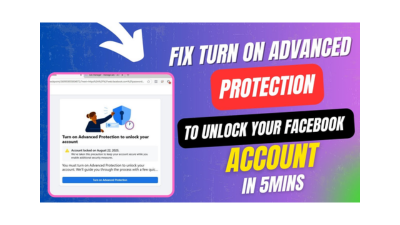
If you’ve ever logged into your Facebook account only to see the frustrating message “Turn on Advanced Protection to Unlock,” don’t panic you are not alone. Facebook now requires some users to enable extra security features to keep accounts safe from hackers.
The good news is that unlocking your account is actually very simple. In this article, I will take you through the step-by-step process so you can get back into your account without stress.
Step-by-Step Guide to Enabling Advanced Protection on Facebook
Here’s exactly what I did to unlock my account:
- Click “Turn On Advanced Protection”
When you see the prompt, click the button. This takes you to the setup screen.
- Click “Next”
You’ll be guided through a few quick setup screens. Just keep clicking Next.
- Fix Two-Step Verification
Facebook will notify you that you haven’t set up two-step verification yet.
Click on “Fix Now.”
- Choose a Verification Method
You can either:
Use SMS (Facebook will text you a code), OR
Use an authentication app for added security.
- Enter Your Phone Number
If you select SMS, type in your phone number.
Facebook will send you a confirmation code.
- Enter the Code
Check your SMS or app for the code. Enter it into Facebook.
- Finish Setup
Click on Finish, and you’re done!
Facebook will redirect you back to your account.
That’s it you’ve successfully turned on Advanced Protection and unlocked your Facebook account.
Why Facebook Requires Advanced Protection
Facebook introduced this step to protect accounts from unauthorized access. With so many hackers and fake login attempts these days, two-step verification ensures that even if someone gets your password, they can’t log in without your phone or app code.
Think of it as adding an extra lock to your digital home on Facebook.
Unlocking your Facebook account by enabling Advanced Protection might look intimidating at first, but it’s actually just a few simple steps. Now that your account is secure, you can browse with peace of mind knowing your personal data is protected.
If you found this guide helpful, share it with a friend who might be struggling with the same issue. And don’t forget to leave your questions or experiences in the comments I’d love to hear from you.
This message appears when Facebook temporarily locks your account for security reasons. It means you must enable Advanced Protection usually by turning on two-step verification before you can regain full access. This feature helps protect your account from hackers and unauthorized logins.
Click “Turn On Advanced Protection.”
Click Next until you see the two-step verification setup.
Choose your preferred verification method, SMS or authentication app.
Enter the confirmation code sent to your phone or app.
Click Finish to complete the setup and unlock your account.
Facebook asks you to turn on Advanced Protection to prevent unauthorized access. The platform has increased security requirements due to rising hacking attempts. By enabling this feature, even if someone gets your password, they can’t log in without your phone or verification code.
Double-check your phone number is correct.
Ensure your SIM card has network coverage.
Try selecting the authentication app option instead of SMS.
Wait a few minutes and click “Resend code.”
If it still doesn’t work, visit facebook.com/help for manual account recovery.
Yes, it’s both safe and highly recommended. Facebook’s Advanced Protection adds an extra layer of security to your account, making it harder for hackers to gain access. It’s especially important if you use Facebook for business, ads or managing multiple pages.

David Asaana is a Digital Marketer, Author and Entrepreneur with over five years of experience. He has worked with 4,000+ clients across Ghana, the USA, the UK, and beyond, and his YouTube channel where he shares step-by-step tutorials on digital marketing and business growth has reached more than 1.9 million views.