David Asaana

UNEXPECTED ERROR OCCURRED FACEBOOK ADS MANAGER PROBLEM SOLVED

Step by Step guide of how to solve the problem of UNEXPECTED ERROR OCCURRED IN FACEBOOK ADS MANAGER. Step 1: First the number one reason why this problem occurs is either you don’t have an internet connection or you have very poor internet connection, so if your internet connection is not strong, you will see this problem telling you that you can’t log in or an unexpected error has occurred or something like that. Now swipe down and then check to make sure that you have internet access if you are not sure whether you have internet access or not. Step 2: Go to your browser and then try to access or to search for something using your browser if you see that you have internet access, I will advise you to put the phone on flight mode and turn it off again, then you click on Try Again, or if it is still giving you the same issue then you close the app and try opening it again. You will see that the issue will be resolved for you. Don’t forget to check out the video tutorial below for a more hands-on guide.Found this article helpful? Share it with others who may need to solve the problem of “unexpected error occured” in their Facebook Business Manager too! For more Facebook and social media business management tips, subscribe to our newsletter or follow us on social media. FAQ David Asaana is a Digital Marketer, Author and Entrepreneur with over five years of experience. He has worked with 4,000+ clients across Ghana, the USA, the UK, and beyond, and his YouTube channel where he shares step-by-step tutorials on digital marketing and business growth has reached more than 1.9 million views. READ FULL AUTHOR PROFILE HERE

UNEXPECTED ERROR OCCURRED FACEBOOK ADS MANAGER PROBLEM SOLVED Read More »

Facebook Ads Warning: “Ad set May Get Zero Results”? Here’s What to Do

If you’ve ever been setting up your Facebook ad campaign and suddenly saw the warning “Ad may get zero results” at the ad set level don’t panic. This is a very common issue and in most cases, it’s easily fixable. In this quick guide, I’m going to walk you through what causes this warning and how to resolve it, based on what has worked for me (and many of my clients). Let’s break it down together. Why You’re Seeing the “Ad May Get Zero Results” Warning The #1 reason for this warning is your daily budget is too small. While other factors like your audience size can contribute, over 70–80% of the time, it’s all about the budget. If your budget is too low, Facebook doesn’t think it can deliver enough impressions to generate results. How to Fix It Here are the steps I personally take to fix this issue: 1. Increase Your Daily Budget 2. Adjust Based on Location Different locations have different advertising costs. Don’t expect $5 to give you the same reach in the US as it does in Ghana, India or Nigeria. 3. Let the Ad Run Anyway Sometimes, even if you see the warning, the ad will still perform well.In one of my own campaigns, I left it at $5/day despite the warning and guess what? It delivered great results. 4. Monitor Performance Let it run for a day or two. If you’re seeing good engagement, leads or conversions, you’re good to go. If not, adjust the budget or the ad set targeting. Bonus Tips don’t forget to check out the video tutorial for a more hands-on guide.Found this article helpful? Share it with others who may also need to solve the problem of “ads set may get zero result” too! For more digital marketing tips or tips on resolving advertising restrictions, subscribe to our newsletter or follow us on social media.

Facebook Ads Warning: “Ad set May Get Zero Results”? Here’s What to Do Read More »

How to Change the Logo of Your WordPress Website (Step-by-Step Guide)

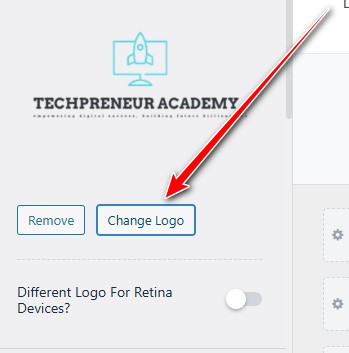
If you’re new to WordPress or just looking to give your site a little branding boost, you’re in the right place. In this quick tutorial, I’ll walk you through how to change the logo on your WordPress website even if you have zero coding experience. Let’s dive right in. Step-by-Step: How to Change Your WordPress Site Logo If you need more help, reach out to us directly through WhatsApp or Telegram or book a Zoom meeting with us via our website. Don’t forget to check out the video tutorial for a more hands-on guide.Found this article helpful? Share it with others who may need to change the logo of their website in WordPress too! For more Facebook and business management tips, subscribe to our newsletter or follow us on social media.

How to Change the Logo of Your WordPress Website (Step-by-Step Guide) Read More »

HOW TO FIX FACEBOOK ADS REJECTED PROBLEM SOLVED

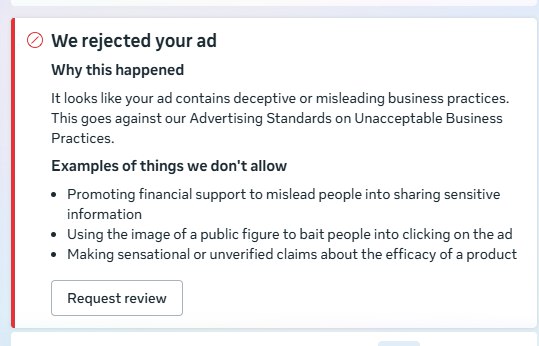
Have you ever had your Facebook ad rejected and wondered what went wrong or how to fix it? You’re not alone. Facebook can sometimes reject ads due to violations of their advertising policies often without giving you a clear explanation. But don’t worry. In this article, I’ll walk you through exactly how I fix rejected Facebook ads and get them approved, based on my personal experience as a digital marketer.

HOW TO FIX FACEBOOK ADS REJECTED PROBLEM SOLVED Read More »

AD ACCOUNT DISABLED, WE WEREN’T ABLE TO PROCESS PAYMENT

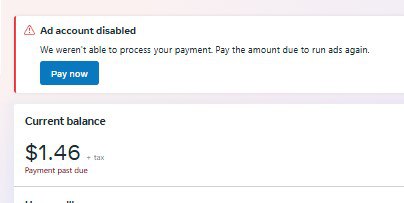
Why Your Payment Might Be Declined and How to Fix It Possible Reasons for Payment Failure: In some cases, you may need to fill out a form or explicitly request authorization from your bank. Minimum Account Balance Requirement: Banks often require a certain minimum amount to remain in your account. If you try to pay an amount that leaves the balance below this minimum, the transaction may fail. Trying to Pay the Full Amount (Including Decimals): Sometimes, trying to pay an exact amount like $99.89 might fail. Solution: Try paying a rounded-down amount like $99, leaving out the decimal part. New Card or Bank Account Restrictions: If the card or account is new, your bank might not have authorized online transactions yet. Step- by -Step guide on how to solve the problem of “AD ACCOUNT DISABLED, WE WEREN’T ABLE TO PROCESS PAYMENT” Step 1-Try Paying a Smaller Amount: Step 2-Remove the Decimal: This often helps when the payment fails despite having enough funds. If you owe $99.89, try paying $99 instead. Step 3: Use a Different Card: If none of the above works, try a different card that you know works with online payments. Step 4: Contact Your Bank: If you need more help, reach out to us directly through WhatsApp or Telegram or book a Zoom meeting with us via our website. Don’t forget to check out the video tutorial for a more hands-on guide. Found this article helpful? Share it with others who may need to fix their disabled account too! For more Facebook and business management tips, subscribe to our newsletter or follow us on social media.

AD ACCOUNT DISABLED, WE WEREN’T ABLE TO PROCESS PAYMENT Read More »

How to Promote Your YouTube Video with Google Ads (Step-by-Step Guide)

Promoting your YouTube videos can be one of the fastest ways to grow your channel, drive traffic to your website, or boost sales. In this article, I’ll walk you through two simple methods you can use to promote your YouTube videos using Google Ads, even if you’re a complete beginner. Let’s break it down step by step. Method 1: Promote Directly from YouTube Studio (The Easier Option) This method is great for beginners or those who want a simpler, faster process. Step 1: Go to YouTube Studio Step 2: Click “Get Started” Step 3: Choose Your Objective You’ll be asked what your goal is: Pick the one that best fits your goal. Step 4: Select Your Video Click “Add” and choose the video you want to promote. Step 5: Set Your Landing Page If your goal is to drive traffic to a course or website, paste the URL where viewers will land after clicking the ad. Step 6: Set Location & Language Step 7: Set Budget & Duration Method 2: Promote Using Google Ads Manager (For More Control) This method gives you more advanced features and detailed targeting options. Check the YouTube video below for method 2 Don’t forget to check out the video tutorial for a more hands-on guide.Found this article helpful? Share it with others who may need to promote their YouTube videos with google ads. For more YouTube and business management tips, subscribe to our newsletter or follow us on social media.

How to Promote Your YouTube Video with Google Ads (Step-by-Step Guide) Read More »

[]