If Facebook shows “Sorry, this content isn’t available at the moment,” it doesn’t necessarily mean your Facebook account has been blocked or permanently restricted. The message can appear because the content was deleted, the link is outdated, privacy settings changed, someone blocked you, your login session has a problem, or you don’t have permission to access a particular Facebook business asset.
For businesses, the problem can be especially frustrating when it happens while trying to access a Facebook Page, Meta Business Suite, Ads Manager or another business asset.
The important thing is to identify what you’re trying to access and whether the problem affects one piece of content or your entire Facebook account.
Why Does Facebook Say “This Content Isn’t Available”?
The message is broad, so there isn’t one universal cause.
Here are the most common possibilities.
1. The Facebook Content Was Deleted
The post, video, photo, Page or other content you’re trying to open may no longer exist.
For example, someone could send you a Facebook post through WhatsApp. If the person later deletes the post, the original link may no longer work.
What to do
Instead of repeatedly opening the same link:
- Copy the name of the Facebook Page or profile.
- Search for it directly on Facebook.
- Open the Page or profile.
- Look for the original content.
- Check whether the content still exists.
If you cannot find it, it may have been deleted, unpublished or otherwise removed.
2. The Facebook Link Is Broken or Expired
Old Facebook links don’t always continue to work.
The original content may have been moved, deleted or become unavailable to the audience that originally had access to it.
This is especially common when someone sends you an old post or link from several months or years ago.
Don’t assume that a broken link means your Facebook account has a problem.
First determine whether the content itself still exists.
3. The Privacy Settings Have Changed
Facebook allows users and Pages to control who can see certain content.
A post that was previously visible to you may later become restricted.
For example, the content owner may change the audience from:
Public → Friends
or restrict it to a particular group or audience.
If your account no longer meets those visibility requirements, Facebook may show the unavailable-content message.
What should you do?
If you’re trying to view someone else’s post, there may be nothing you can change on your account to make private content available.
Respect the content owner’s privacy settings.
4. Someone May Have Blocked You
Being blocked is another possible explanation.
If you cannot access a particular person’s profile or content while other Facebook users can access it, blocking could be one reason.
However, don’t immediately assume you’ve been blocked.
The same error can be caused by:
- Deleted content
- Privacy restrictions
- A deactivated profile
- Technical problems
- An outdated link
A useful test
If appropriate, search for the same profile or content from another legitimate Facebook account.
If the content is visible from another account but consistently unavailable from yours, an account-specific restriction may be involved.
5. Your Facebook Login Session Has a Problem
Sometimes the problem isn’t the content at all.
Your browser may have an outdated Facebook login session.
This can happen when you’re logged into Facebook for a long period or when Facebook changes parts of its platform.
You might still appear to be logged in but encounter an error when opening a particular Page, post or business tool.
Try this
- Log out of Facebook.
- Close the browser.
- Reopen it.
- Log back into Facebook.
- Try opening the content again.
If the problem disappears, the issue may have been related to your previous login session.
6. Your Browser Cache or Cookies May Be Causing the Problem
Your browser stores temporary website files and cookies to make websites load more efficiently.
Sometimes outdated browser data can interfere with Facebook.
If Facebook works correctly on your phone but not on your computer, browser-related problems become more likely.
Try clearing your browser data
On browsers such as Chrome or Microsoft Edge, go to the browser’s privacy settings and look for the option to clear browsing data.
You can normally clear:
- Cached images and files
- Cookies
- Site data
After clearing the relevant data:
- Close Facebook.
- Restart your browser.
- Open Facebook again.
- Sign in.
- Try accessing the content.
Make sure you know your Facebook login details before clearing cookies because you may be signed out.
7. Try Another Browser or Device
This is one of the easiest ways to determine whether the problem is related to your device.
For example:
Facebook doesn’t work on Chrome → Try Microsoft Edge.
Or:
Facebook doesn’t work on your computer → Try the Facebook mobile app.
If the content works on your phone but not your computer, the problem may be related to your browser, cache, cookies or an extension.
If it doesn’t work anywhere, investigate the account or content itself.
8. Facebook May Have Temporarily Limited Access
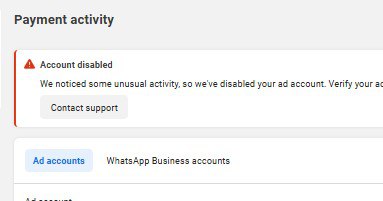
Facebook can sometimes temporarily restrict access to certain features, accounts or activities while it reviews security or account-related issues.
If you’re seeing the error across multiple Pages, posts or business tools, check your Facebook notifications and account-status information.
Look for messages concerning:
- Account restrictions
- Security checks
- Suspicious activity
- Business access
- Advertising restrictions
Don’t assume that one unavailable page means your entire Facebook account has been disabled.
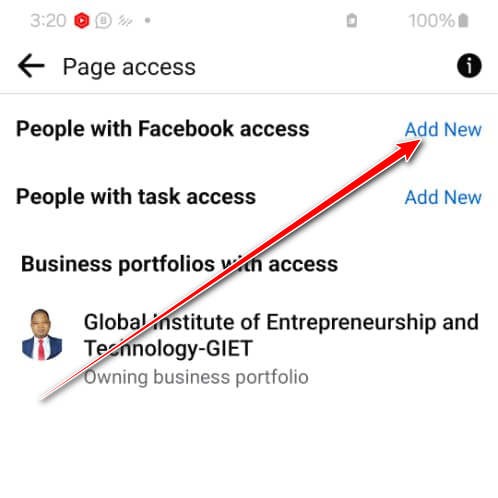
9. You May Not Have Permission to Access a Business Asset
This is particularly important for businesses.
You may be able to log into your personal Facebook account but still be unable to access a particular:
- Facebook Page
- Ad account
- Business portfolio
- Instagram account
- Meta Business Suite
- Advertising tool
Personal Facebook access and business-asset access are not always the same thing.
If you recently changed jobs, changed agencies or had your business permissions modified, this could explain why a particular business asset isn’t available.
How to Fix “Sorry, This Content Isn’t Available” on Facebook
Don’t change several things at once.
Work through these steps in order.
Step 1: Refresh the Page
Start with the simplest solution.
Refresh Facebook and try opening the content again.
If it was a temporary loading problem, the content may appear normally.
Step 2: Check the Original Facebook Page or Profile
If someone sent you a link, don’t rely entirely on that link.
Search for the Page or profile directly on Facebook.
Then:
- Open the Page.
- Search for the content.
- Check whether the post still exists.
If you can’t find it, the original content may have been removed or made unavailable.
Step 3: Check Whether You’re Logged Into the Correct Account
If you manage several Facebook accounts or business assets, make sure you’re using the account that actually has access.
This is particularly important when working with Meta Business Suite or Ads Manager.
Step 4: Try Another Browser
Open Facebook in another browser.
For example:
- Chrome
- Microsoft Edge
- Firefox
If the problem disappears, your original browser may be causing the issue.
Step 5: Clear Cache and Cookies
If another browser works, clear the cache and relevant cookies in your main browser.
Then sign into Facebook again and test the page.
Step 6: Try the Facebook Mobile App
If you’re using a computer, try opening the same content through the Facebook mobile app.
If it works on mobile but not your computer, focus your troubleshooting on the browser and computer rather than immediately changing your Facebook account.
Step 7: Check Business Permissions
If the problem involves a Facebook Page, advertising account or Business Suite, check your business permissions.
Confirm that you still have the appropriate role or access to the asset.
If you’re working with an agency or another administrator, ask them to verify your access.
Step 8: Check for Account Restrictions
Review Facebook’s account-status and notification areas for any warnings.
If Facebook has restricted a particular feature or account, the notification may provide more information about what happened and what action is available.
Facebook Content Isn’t Available in Meta Ads Manager
If you’re trying to access Meta Ads Manager and receive an unavailable-content message, don’t immediately assume your advertising account has been permanently disabled.
Start by checking:
- Whether you’re logged into the correct Facebook account
- Whether you still have access to the business portfolio
- Whether you have permission to access the ad account
- Whether your browser session is working correctly
- Whether the Page connected to the campaign is still accessible
- Whether there are account or security notifications
For businesses running paid advertising, these checks can save time because the problem may be an access issue rather than an advertising-policy violation.
What If Facebook Content Works on Mobile but Not Computer?
This is a useful clue.
If Facebook works correctly on your phone but displays “This content isn’t available” on your computer, investigate the computer first.
Try:
- Another browser.
- Incognito/private browsing.
- Clearing cache and cookies.
- Disabling problematic browser extensions.
- Logging out and back in.
- Restarting the browser.
If the same content works on another browser, there’s a good chance the issue isn’t with the Facebook content itself.
What If Facebook Content Doesn’t Work on Any Device?
If the problem occurs:
- On your phone
- On your computer
- In different browsers
- Across multiple Facebook links
then investigate your account, permissions or the content itself.
Check whether other people can access the same content.
If nobody can access it, the content may have been deleted, restricted or temporarily unavailable.
If other people can access it but you cannot, investigate your account or permissions.
Should You Create a New Facebook Account?
No—not as your first solution.
Creating another Facebook account won’t necessarily fix a problem caused by:
- A deleted post
- Privacy settings
- Browser problems
- Business permissions
- A restricted Page
- An inaccessible ad account
First identify the cause.
Creating additional accounts without understanding the original problem can make your Facebook and business setup more complicated.
When Should You Contact Meta Support?
Consider using Meta’s official support options when:
- You cannot access an important business asset.
- Your advertising account appears restricted.
- You believe your account has been compromised.
- The problem continues across multiple devices.
- Your Page or ad account contains active campaigns.
- You have confirmed that you have the correct permissions.
- You have already tried basic browser troubleshooting.
Before contacting support, take screenshots.
Record:
- The exact error message
- The URL you were trying to open
- The Facebook account you’re using
- The business asset involved
- What troubleshooting you’ve already attempted
This makes it easier to explain the problem.
Facebook Content Isn’t Available: Quick Troubleshooting Table
| What you’re experiencing | Possible cause |
|---|---|
| One post isn’t available | Deleted, expired or privacy-restricted content |
| One profile isn’t available | Blocking, privacy or account issue |
| An old link doesn’t work | Broken or outdated link |
| Facebook works on mobile but not computer | Browser/cache issue |
| Several Facebook links fail | Account, browser or platform issue |
| Ads Manager won’t open | Login, permissions or account problem |
| Business Page isn’t accessible | Business-asset permissions |
| Content fails across all devices | Account, content or platform issue |
Facebook Content Isn’t Available: Quick Fix Checklist
Before contacting support, work through this list:
- Refresh Facebook.
- Check whether the original content still exists.
- Search for the Page or profile directly.
- Confirm you’re logged into the correct account.
- Try another browser.
- Try private/incognito browsing.
- Clear cache and cookies.
- Try the Facebook mobile app.
- Check your business permissions.
- Review account notifications.
- Check for restrictions.
- Take screenshots of the error.
- Contact official Meta support if the issue persists.
Final Thoughts
The “Sorry, this content isn’t available at the moment” message on Facebook does not automatically mean you’ve been blocked or that your account has been permanently restricted.
The cause could be as simple as a deleted post or broken link. It could also involve privacy settings, browser data, account access, business permissions or a temporary Facebook issue.
The best approach is to troubleshoot systematically.
Check the content first, then your browser, then your account and business permissions.
If the problem continues across different devices and browsers, document the error and seek support rather than repeatedly creating new accounts or changing settings without knowing the cause.
If Facebook access problems are affecting your business, don’t let a technical issue disrupt your marketing for longer than necessary.
GIET helps Ghanaian businesses with Facebook and Instagram advertising, digital marketing strategy, campaign setup and ongoing marketing support.
If you’re dealing with Facebook advertising or business-account problems and need professional guidance, talk to GIET about the right solution for your business.
FAQ’S
The content may have been deleted, the link may be outdated, privacy settings may have changed, you may have been blocked, your browser session may have a problem, or you may not have permission to access the content.
Not necessarily. Being blocked is only one possible explanation. Deleted content, privacy restrictions, account problems and technical issues can produce a similar message.
Refresh the page, check the original Page or profile, try another browser or device, clear cache and cookies, verify your account permissions and check for account restrictions.
Possible causes include browser problems, an expired login session, insufficient business permissions, account restrictions or temporary platform issues.
It can help if outdated browser data is interfering with Facebook. Clear the relevant cached data and cookies, sign in again and test the content.
Test Facebook on another device and browser, check your account and business permissions, review notifications for restrictions and use Meta’s official support options if the issue continues.