If you see “We weren’t able to process your payment” while trying to run Facebook Ads, your advertising account may have an unpaid balance or a payment method that Meta could not successfully charge. The solution is usually to check your payment activity, confirm your card has enough funds, review the payment method and try again. If the problem continues, further troubleshooting or support may be necessary.
This problem can prevent your Facebook and Instagram campaigns from delivering, even when your ads themselves have been approved.
This covers a situation where an advertiser received a message that Meta could not process the payment and that the amount due needed to be paid before ads could run again.
Why Does Facebook Ads Payment Fail?
A Facebook Ads payment failed message can happen for several reasons.
The most common things to check are:
- Insufficient available funds
- Incorrect card information
- A declined transaction
- Bank restrictions
- Payment-method problems
- An unpaid advertising balance
- A temporary payment or authorization issue
- Problems with the advertising account
The important thing is not to immediately assume that your Facebook Ads campaign is the problem.
Start with the payment section and identify exactly what Facebook is asking you to resolve.
How to Fix Facebook Ads Payment Failed
Follow these steps before creating a new campaign or advertising account.
Step 1: Log Into Your Facebook Account
First, log into the Facebook account that manages the advertising account.
You can use a computer or phone.
Note that advertisers can access the relevant advertising functions from either device, although mobile users may need to use the Ads Manager app.
If you’re using a computer, open Facebook and sign in with the account that has access to the relevant advertising account.
Step 2: Open Ads Manager
Once you’re logged in, open Meta Ads Manager.
This is where you manage your:
- Campaigns
- Ad sets
- Ads
- Billing
- Payment methods
- Advertising account information
If you’re troubleshooting a payment failure, don’t focus only on the campaign itself.
Go to the billing and payment area.
Step 3: Check the Amount Due
Look at your payment or billing section and identify whether there is an outstanding amount.
For example, Facebook may indicate that you need to pay the amount due to run ads again.
Write down the amount before attempting to pay.
This helps you determine whether:
- You genuinely have an outstanding balance
- Your payment method is being declined
- The attempted payment is different from what you expected
- There is another payment-related warning on the account
Step 4: Check Your Card Balance
Before trying the payment again, confirm that your card has enough available funds.
This sounds obvious, but it is one of the first things you should eliminate.
If Facebook is attempting to charge your card and there isn’t enough available balance, the transaction may fail.
For Ghanaian advertisers, also remember that your bank card may be funded in Ghana cedis (GHS) while your advertising account may use another currency.
Allow enough room for currency conversion and any applicable bank charges.
Don’t fund the card with an amount that is exactly equal to the expected advertising charge and assume that will always be sufficient.
Step 5: Check Your Payment Method
Open your payment settings and review the card you’re using.
Check:
- Card number
- Expiry date
- Security details
- Available funds
- Whether the card is still active
- Whether your bank permits the transaction
If the card has expired or the details are incorrect, update the payment method.
You can also use the Ads Manager environment to proceed with payment from either a computer or phone.
Step 6: Try to Make the Payment Again
Once you’ve confirmed that the card has sufficient funds and the payment details are correct, try the payment again.
Don’t repeatedly click the payment button without first checking the underlying issue.
If the payment succeeds, check your advertising account again to confirm that the campaign can resume delivery.
If it still fails, continue troubleshooting.
What If Your Facebook Ads Payment Keeps Failing?
If your payment continues to fail even though you have sufficient funds, don’t assume that adding more money will automatically solve the problem.
Check whether:
- The bank is declining the transaction.
- The card has online-payment restrictions.
- The card has international-payment restrictions.
- The payment information is correct.
- There is another outstanding payment issue.
- Meta is displaying a separate payment or account warning.
If necessary, contact your bank to determine whether the transaction is being declined from their side.
Can You Add Another Card?
Yes, adding another legitimate payment method can be a useful troubleshooting step.
If your first card fails, you can try another card that:
- Belongs to you or is legitimately authorised for business use
- Has sufficient funds
- Is active
- Supports the relevant online transaction
However, don’t keep adding cards indefinitely.
If multiple cards with sufficient funds fail in the same advertising account, that may indicate that the problem is not simply your original card.
At that point, further investigation may be necessary.
Facebook Ads Payment Failed vs Temporary Hold Unsuccessful
These two payment problems can look similar, but they aren’t necessarily the same issue.
| Facebook Ads Payment Failed | Temporary Hold Unsuccessful |
|---|---|
| Meta could not process an amount due | Meta could not successfully place a temporary authorization |
| May involve an outstanding advertising balance | May occur during payment verification |
| Can be caused by card or bank problems | Can also involve payment-system issues |
| Usually requires payment troubleshooting | May require payment-method or technical troubleshooting |
| Can prevent campaigns from running | Can also prevent advertising delivery |
If your account specifically says “temporary hold unsuccessful,” follow the troubleshooting process for that particular message rather than treating it as an ordinary unpaid balance.
Why Does Facebook Say Payment Failed When I Have Money?
This is one of the most frustrating situations for advertisers.
You check your card and see that money is available, but Facebook still reports a failed payment.
There are several possibilities.
Currency differences
If your card uses GHS while the advertising account uses USD or another currency, the amount available may not correspond exactly to what Meta needs to process the transaction.
Bank restrictions
Your bank may decline certain online, international or recurring transactions even when the account has enough money.
Card problems
The card itself may have restrictions, expired details or another issue.
Meta payment problems
If you’ve checked your card, balance and bank restrictions and the same problem continues, the issue may require investigation on Meta’s side.
The error message alone does not always tell you exactly where the failure occurred.
Can a Failed Payment Stop Facebook Ads?
Yes.
If Meta cannot collect the amount required from your advertising account, your campaigns may stop delivering until the payment issue is resolved.
That’s why you should treat payment errors as a priority when an advert suddenly stops spending.
For example:
Campaign: Active
Ad: Approved
Payment: Failed
Spend: Not increasing
In that situation, changing your ad creative may not solve the problem.
Check billing first.
How to Pay Your Facebook Ads Balance
The basic process is:
- Log into Facebook.
- Open Ads Manager.
- Go to the billing/payment section.
- Identify the amount due.
- Review your payment method.
- Confirm that sufficient funds are available.
- Submit the payment.
- Check whether the payment succeeds.
- Return to Ads Manager and check campaign delivery.
You can access Facebook from a computer or using the Ads Manager app on a phone before proceeding with payment.
Because Meta regularly changes its interface, the exact location and wording of buttons can differ between accounts and app versions.
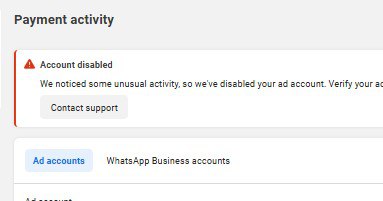
What If Facebook Disabled Your Advertising Account?
A payment failure and an advertising restriction are not necessarily the same thing.
If Facebook says your advertising account is disabled, don’t treat it as simply a failed card payment.
Look carefully at the notification.
You may need to:
- Resolve an outstanding payment
- Update your payment method
- Request a review
- Address an account restriction
- Contact Meta support
Read the exact message shown in your account before deciding what to do next.
Should You Create a New Facebook Ads Account?
Creating another advertising account should not be your first response to a payment failure.
First try to resolve the original payment issue.
Creating a new account without understanding the original problem can make your advertising setup more complicated and may not solve the underlying payment issue.
If the problem is genuinely tied to a particular advertising account and the available troubleshooting and support options have been exhausted, a different advertising setup may be considered where appropriate.
But don’t use a new account to bypass legitimate restrictions or payment obligations.
Facebook Ads Payment Failed: Troubleshooting Checklist
Before contacting support, go through this list:
- Check the amount Facebook says is due.
- Check your available card balance.
- Allow for currency conversion if applicable.
- Check that your card details are correct.
- Confirm that the card has not expired.
- Check whether your bank declined the transaction.
- Confirm that online transactions are allowed.
- Try the payment again.
- Consider another legitimate payment method.
- Check for other account warnings.
- Check whether the advertising account is disabled.
- Contact Meta support if the problem persists.
Facebook Ads Payment Failed in Ghana: What Advertisers Should Check
For Ghanaian businesses, payment troubleshooting can involve an additional consideration: currency.
If your business operates in Ghana and your bank account or card is funded in Ghana cedis, but your Meta advertising account charges in another currency, don’t look only at the headline amount shown in Ads Manager.
Consider:
- Current exchange rates
- Your available card balance
- Possible bank charges
- Whether your bank permits the transaction
- Whether your card supports the relevant payment type
For example, if you’re expecting a payment equivalent to GH¢500, don’t assume that having exactly GH¢500 available guarantees that the transaction will succeed.
Give yourself reasonable room for the actual amount that may be processed.
When Should You Contact Meta Support?
Contact Meta support when you’ve already confirmed that:
- Your card has sufficient funds.
- Your payment information is correct.
- Your bank has not blocked the transaction.
- You’ve tried the payment again.
- Another legitimate payment method also fails.
- The account continues displaying the payment error.
When contacting support, explain the issue clearly.
Include:
- Your advertising account
- The exact error message
- The amount due
- What troubleshooting you’ve already completed
- Relevant screenshots
Never send your full card number, PIN, CVV, OTP or banking password to anyone claiming to be support.
Final Thoughts
A Facebook Ads payment failed message can be frustrating, especially when you need your campaign to keep running.
But don’t immediately delete your campaign or create a new advertising account.
Start with the payment itself.
Check the amount due, confirm your card balance, review your payment details, consider currency conversion, check with your bank and try the payment again.
If the same problem continues after you’ve tested the obvious causes, document the error and seek help through the appropriate Meta support channel.
For Ghanaian businesses, also remember to account for the relationship between GHS-funded cards and foreign-currency advertising charges where applicable.
The goal is to identify the actual cause of the payment failure rather than repeatedly changing cards, campaigns or advertising accounts without knowing what went wrong.
Is your Facebook Ads payment failing when you’re trying to run your campaign?
If you’ve checked your balance, payment method and bank restrictions but the problem continues, GIET can help you troubleshoot your Facebook and Instagram advertising setup and identify practical ways to get your campaigns running effectively.
👉 Learn more about Facebook and Instagram advertising services with GIET, or get in touch with the team to discuss your advertising needs.
FAQs
Your payment may fail because of insufficient available funds, incorrect card details, bank restrictions, payment-method problems or another issue affecting the advertising account.
Check the amount due, confirm your card has sufficient funds, verify your payment details, check for bank restrictions and try the payment again. If it continues to fail, investigate the issue with Meta support.
Having money available does not guarantee that a transaction will be approved. Currency conversion, bank restrictions, card limitations or payment-system problems can also cause a transaction to fail.
Yes, you can try another legitimate payment method with sufficient funds and the ability to process the required transaction.
A failed payment can prevent your advertising account from continuing to run campaigns if Meta cannot collect the required amount.
Not immediately. First troubleshoot the existing account and payment method. A new advertising account may not solve the underlying problem.